
September 21, 2026
Keeping Chatbot FAQs Fresh: Auto-Sync from a Google Sheet
Monday morning, three inquiries land on the store operations lead's desk in a row. "Is last week's sale still on?" "Isn't that shipping fee different now?" Each one traces back to something the bot said with total confidence.
The sale ended Friday. The price list the bot had been given was from the previous quarter. Nobody was negligent. The update process was "someone opens the admin screen when they remember," and nobody remembered.
Most chatbot articles stop at launch. This one starts after it: how you keep the FAQ accurate in month three, when the person responsible is not an engineer and has a day job.
A stale answer is worse than no answer
When a bot says "I'm not sure," the customer asks a person. It costs a little effort and creates no misunderstanding.
When a bot states old information in a confident tone, the story changes. The customer believes it and quotes it back to your staff: "the bot said so." Your team explains the real situation and sometimes settles it with a discount or a refund. The faster the bot answers, the faster the mistake travels.
Most of the time the cause is not model quality. It is that the material the bot was given went out of date. A RAG chatbot answers from the documents it has been taught, so stale documents mean stale answers. Keep the documents current and you have settled half of the accuracy argument.
The hard part is "keep them current."
Updates stall in the same place, almost every time
The pattern is common. The source of truth for products and prices already lives in a spreadsheet. The bot's admin screen lives somewhere else. Every change means editing two places, and the second one gets forgotten. The person in charge is juggling several duties, so "later" quietly becomes "never."
There is a second trap: the person who owns the information is not the person who looks after the bot. Merchandising sets the prices; customer support watches the bot. Merchandising never learns whether the change reached it.
So the fix is not asking people to try harder. It is removing the second edit. You fix the table you already maintain, and the bot follows.
The training data tab: four ways in
OneBot's admin has a "Training data" tab with four entry points.
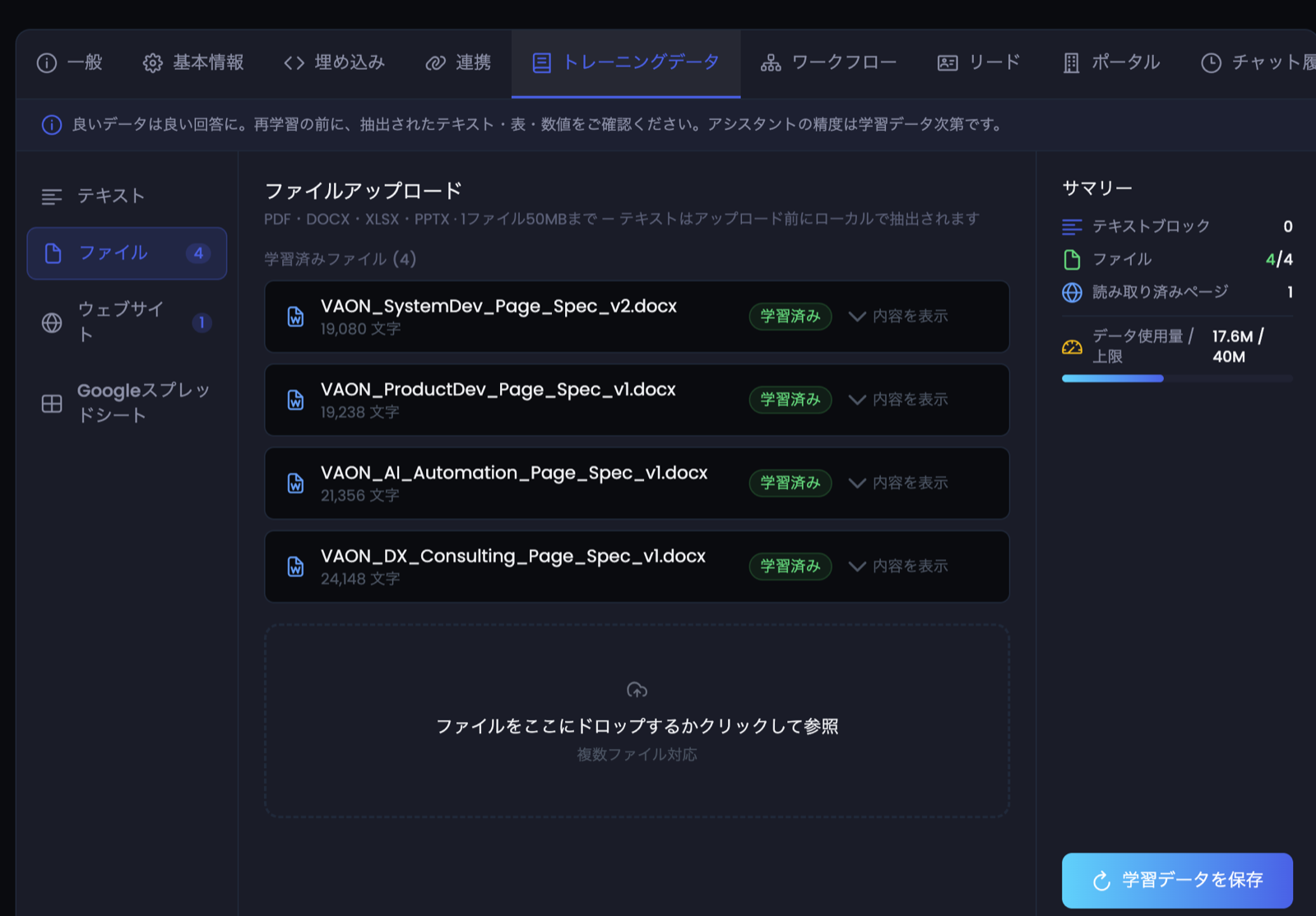
- Text: paste and save. Good for a short notice or an urgent line.
- Files: upload PDF, DOCX, XLSX or PPTX, up to 50 MB per file.
- Website: give a URL and start reading; there is an option to cover the whole site.
- Google Sheets: the subject of this post, covered below.
A few details on files. Text is extracted in your browser before upload (the screen says so). The original file is stored and can be downloaded later, which makes it easier to trace which document an answer came from. Delete the row and the stored original goes with it.
Each item carries a status badge: trained, pending, training, or failed. After any update, checking that nothing is stuck on "failed" is worth the ten seconds.
One hard limit on the website reader: Google Docs and Google Sheets URLs cannot be crawled, and neither can pages behind a login. "Just paste the link to our internal sheet" does not work. That is what the sync feature is for.
Google Sheets auto-sync: how it works, and the honest caveats
The idea is plain. You edit the sheet. At the interval you chose, the sheet's contents are sent to OneBot. If the content changed, the whole sheet replaces the previous version and is re-learned automatically; no manual retrain is needed. From the next question, the bot answers from the new version.
Setup happens under "Import from Google Sheets" in the admin screen.
- Click "Copy script" to get the generated script.
- Open your sheet, go to Extensions, open Apps Script, and paste it in.
- Reload the sheet, and run "Send to OneBot" once from the new OneBot menu.
- From then on it runs itself at the interval you picked.
Three intervals are available: daily (midnight Japan time), hourly, and every six hours. Daily is enough if a price change can wait for the night. Hourly suits fast-moving information such as stock.
For security, a per-project secret travels in a request header so OneBot can check where the data came from. If an employee leaves or the script leaks, press "Regenerate secret." The old one stops working immediately.
Read this before you rely on it
This is not an OAuth connector. It is not a one-click authorization that syncs on your behalf. You paste a generated script into the sheet yourself. It needs no IT team, but the paste is a manual step you do once.
Google shows an "unverified app" screen on first run. You open Advanced, choose to proceed, and grant permission. It is normal here, since you are approving a script you pasted into your own sheet, but the first person to see it tends to get nervous. Tell them in advance.
It is scheduled, not real time. The three intervals above are all there is.
The sheet is one training item per project, replaced on every push. It is not appended. A row you delete from the sheet disappears from the bot's knowledge after the next sync, and so does a row deleted by accident. The one exception is a fully empty sheet, which is skipped so it cannot wipe good data.
What if someone empties the sheet?
The scariest part of automation is that it can automate accidents too. Someone clears the sheet. Someone renames the tab. A sync fires halfway through a data entry session.
There are guards for some of this. When the sheet is empty, the send is skipped and your existing training data is not overwritten. When nothing has changed since the last run, it is skipped as well. If learning fails midway, the next push retries it.
What the guards do not cover is wrong content. A sheet with a price off by a digit is sent as written. The safety net is for empty data, not for correctness.
How to lay out the sheet: one row, one piece of knowledge
Now the practical part. OneBot treats each row as one block of training text. Build the table with that in mind and answer quality changes noticeably.
The classic mistake is leaving context outside the cell. A "Shipping" column that just says "800 yen" does not tell anyone what it applies to, which region, or since when. The AI retrieves the row's text, so the row has to make sense on its own.
Something like this reads well:
Category | Item | Details | Applies to | Valid period | Last updated
Shipping | Standard delivery | Flat 800 yen nationwide; free over 5,000 yen | Regular items | Always | (date)
Campaign | Autumn sale | 10% off all sale-eligible items | Sale items | (dates) | (date)
Returns | Unopened items | State the number of days from delivery | All items | Always | (date)
Some rules of thumb:
- One topic per row. Do not mix shipping and returns in the same line.
- Do not drop the subject. Not just "free," but what is free, under which condition, inside the row itself.
- Give periods their own column. Delete ended campaigns or mark them closed. A vague "currently running" never looks out of date.
- Keep a last-updated date. It helps humans too: is this row recently checked?
- Separate things that change at different speeds. Price table, return rules, store info. Cram them together and nobody reviews the whole thing.
- Keep rows short. Very long rows blur the match with a question. Long terms and policies belong in a PDF uploaded as a file.
If you work in spreadsheets you probably have merged cells and decorative blank rows for readability. Avoid them in a synced sheet. They look nice to a person and fit poorly with one-row-one-knowledge.
What goes in the sheet, what goes in a file
People often get stuck deciding this. Use update frequency and block length as the guide.
- Short facts that change several times a month (prices, stock, time-limited conditions, temporary opening hours) belong in the sheet.
- Long documents you review once a year at most (terms of service, warranty details, product manuals) belong in files. Re-upload only when you replace them.
- Anything that needs context to judge ("returnable in this case, not in that one") should be split into one condition per row, or kept as a separate explanatory document. Packing exceptions into one cell invites misreadings.
With this split you are not re-reading large documents on every sync, and the blast radius of a change is easier to see.
The first hour: moving existing material into a sheet
If you already run on Excel and PDFs, the first job is not building a new table. It is taking inventory of what is already registered.
Open the training data list and write down every item. Next to each, note who owns the source. Where the source is already a spreadsheet, ask whether that sheet can become the synced one. Where the source is a PDF that rarely changes, leave it as a file.
This usually turns up two things. Old material nobody uses anymore is still registered. And the same content appears in several documents with numbers that disagree. Delete the first; decide which document is authoritative for the second. That decision is a house-rules question, not a technical one, and a bot rollout is a good excuse to settle it.
To start small, pick something that fits in an hour: set up one price table as a sheet, configure sync, and ask five test questions. That is usually enough to tell whether this fits how your team works.
Name one owner
The other unglamorous fix is naming the owner. "Everyone stays alert" tends to mean nobody does. Name one person responsible and one backup. With names on it, a transfer or a holiday is a visible handover.
Do not widen edit rights either. A sheet anyone can fix is a sheet anyone can break. Limit who can edit and let others request changes by comment.
The 15-minute weekly routine
Auto-sync does not abolish upkeep. It moves the upkeep into editing a table you already own. You still need a habit of looking. Here is one realistic routine; shuffle the days to fit your team.
- Five minutes at the start of the week: fix the source sheet. Apply last week's changes (prices, stock, ended campaigns). Name one owner and one backup.
- Wait for the sync, or send by hand. With a daily schedule, wait for the next morning. In a hurry, send it from the OneBot menu.
- Five minutes: ask the bot. Ask about what you changed, in the words a customer would use: "Is the autumn sale still on?" If the answer is stale, the cause is either how the row is written or a failed sync.
- Five minutes: check status badges and conversations. Anything stuck on "failed"? Any question where the customer left without an answer? Add the gaps as new rows.
That is 15 minutes. The routine sounds trivial. Whether it survives depends on whether it keeps running when the owner changes. Write the steps on the first tab of the synced sheet and put the check on that person's calendar.
You fixed it, but the answer did not change
If the weekly check still returns an old answer, look in this order.
- The sync has not run yet. On a daily schedule you may need to wait for the next midnight. If it is urgent, send it manually.
- The send was skipped because the content looked empty or unchanged. Check that the tab you edited is the one being synced.
- The status list still shows "failed" or "pending." The next push retries automatically; if it persists, try regenerating the secret and re-pasting the script.
- The old content is registered from somewhere else too. A common case: the same price list was uploaded as a file earlier and is still in the list. When one topic enters through several doors, the stale one can surface in answers. Keeping a single door per topic is the surest fix.
The fourth is easy to miss. The teams who "thought they had switched to the sheet" are the ones with old files still sitting in the training data list. When you start syncing, scroll the whole list once, top to bottom.
If you serve several clients as an agency, keep the same template sheet for each, turn the four steps into a checklist, and include it in your monthly report so the upkeep is visible. For the reporting side, see our post on automating monthly chatbot reports.
What OneBot does not do
To keep expectations straight:
- It does not check whether your sheet is correct. A wrong price is learned as wrong.
- Sync runs through a script you paste; it is not a permission-based connector.
- Google Docs, Google Sheets and login-protected pages cannot be read with the website tab.
- It does not guarantee that every answer is right. The bot answers from what your documents say, but the way a question is phrased or a document is written can still lead to a weak answer. Human review stays in the loop.
- Sync intervals are daily, hourly or every six hours. Not real time.
Training data is stored on servers located in Japan, but answer generation uses external AI APIs, so parts of a question or document may be processed by an outside AI service. Check that against your own data policy.
Start with one sheet
You do not need to move everything at once. Begin with the table that changes most, often prices and campaigns. Run it for two weeks, confirm that answers stop going stale, then add the next one.
The failure patterns that happen before launch are collected in our rollout failures post, and how the design reduces made-up answers is covered in the hallucination post. To try the sync on your own sheet, create a project from the free trial and run it against a test sheet first.
FAQ
How long after I edit the sheet does the bot change?
It follows the sync interval you set: daily (midnight Japan time), hourly, or every six hours. For urgent changes you can also send manually from the OneBot menu in the sheet. It is not real-time sync.
Can I set this up without IT knowledge?
You paste a script generated in the admin screen into the sheet's Apps Script and run it once from the menu. No programming is needed, but the paste is a manual step, and on first run Google shows an unverified-app screen you approve via Advanced.
If someone accidentally empties the sheet, is the bot's knowledge deleted?
No. An empty sheet is skipped and existing training data is not overwritten. Unchanged content is skipped too. Wrong content, however, is learned as written.
Can I just give the bot a Google Sheets link through the website tab?
No. Google Docs and Google Sheets URLs, and pages behind a login, cannot be read by the website reader. Use the Google Sheets auto-sync instead.
Can I use Excel or PDF files by upload instead?
Yes. PDF, DOCX, XLSX and PPTX up to 50 MB per file. Text is extracted in your browser before upload, and the original is stored for download. Uploads are not a live-updating link, so tables that change often suit sheet sync better.
We exposed the script by mistake. What now?
Click "Regenerate secret" in the admin screen. The old secret stops working immediately. Then paste the new script into the sheet.
Where can I check that the sync was learned properly?
The training data list shows each item's status: trained, pending, training or failed. The most reliable check is still to ask the bot about the thing you changed.
Related articles
- AI Chatbot Implementation Failures in Japan: 5 Mistakes to Avoid in 2026Chatbot implementation failure in Japan is more common than you think. Learn the 5 real patterns — and how RAG, LINE integration, and proper support prevent them.
- How RAG Chatbots Eliminate AI HallucinationsLearn why RAG (Retrieval-Augmented Generation) chatbots answer only from your data — and how this prevents the hallucination problem that plagues generic AI chatbots.
- AI Chatbot Free Trial Guide 2026: What to Test in 14 Days to Make the Right DecisionAI chatbot free trial evaluation guide for Japan 2026: 14-day framework covering setup, test cases, metrics, and go/no-go criteria before full deployment.
- LINE AI Chatbot Cost Guide for Japanese SMBs 2026: Real Pricing BreakdownLINE chatbot cost Japan 2026 explained: setup fees, monthly SaaS plans, LINE channel fees, maintenance, and hidden costs — full breakdown for SMB owners.